AI User Copilot
AI-Enabled Messaging Experience
Picture a chat that effortlessly starts and flows, like catching up with your best buddy over a cup of coffee. With CometChat AI, we're making that a reality! Introducing Conversation Starter and Smart Replies that ignite natural and organic conversations. Say goodbye to awkward silences and hello to chat-filled adventures!
For those who require a concise overview of their discussions, the Conversation Summary feature is available to provide a succinct recap.
Pre-requisite
- Login to your CometChat dashboard and choose your app.
- Navigate to AI Chatbot > Settings in the left-hand menu.
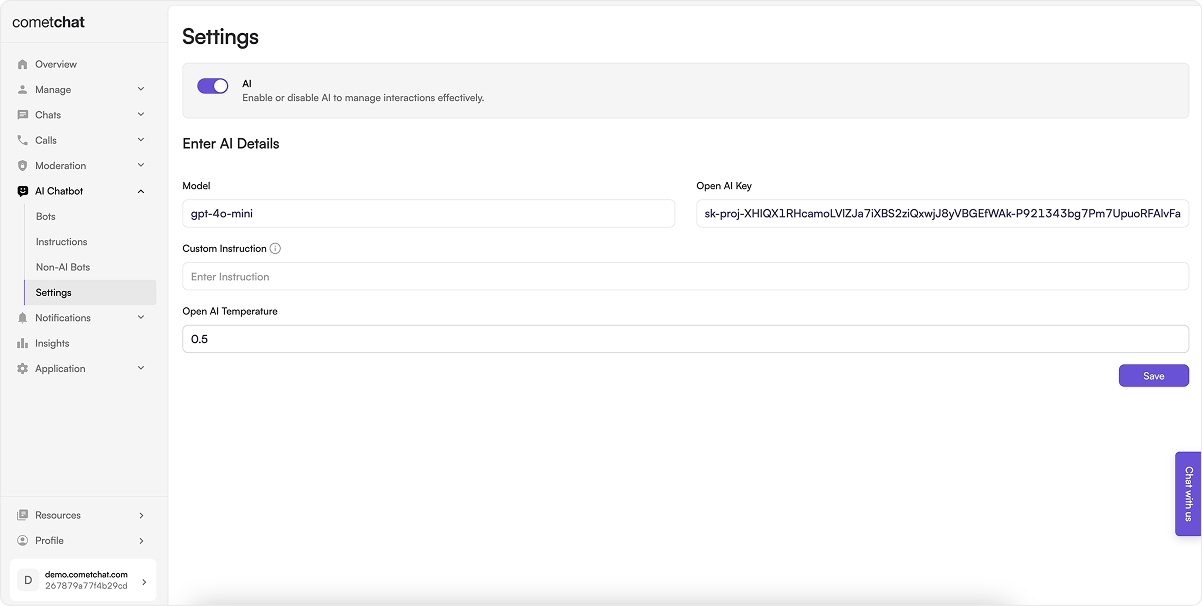
Set the GPT Model
Enter the name of the Open AI ChatGPT model that you intend to use.
Save the Open AI Key
You can get the Open AI Key from your Open AI Account. This will be used by CometChat to interact with the Open AI APIs.
Set a Custom Instruction
Custom Instruction is an information which gets added in each and every ChatGPT prompt made by the CometChat AI. Custom Instruction is app-level information you can add to describe your use-case & inform what kind of responses you need from the CometChat AI.
Set the Temperature
The API is non-deterministic by default. This means that you might get a slightly different completion every time you call it, even if your prompt stays the same. Setting temperature to 0 will make the outputs mostly deterministic, but a small amount of variability will remain.
Lower values for temperature result in more consistent outputs, while higher values generate more diverse and creative results. Select a temperature value based on the desired trade-off between coherence and creativity for your specific application.
Enable AI
Toggle on AI.